Making pfSense the front door to my LAN over Tailscale
Quick context for anyone who doesn’t live in networking gear: Tailscale is a VPN that lets your laptop or phone join your home/office network securely from anywhere, without opening ports on your router to the public internet. One device on the network can act as the “front door”. the thing that decides what remote traffic is allowed in and where it’s allowed to go. That role is called a subnet router.
For a while, that front door was a Pi-hole VM. a little box whose actual job is ad-blocking DNS. It was advertising the route into my LAN almost as an afterthought. That’s backwards. The firewall is the device built to make access decisions; a DNS box just happens to also be running on the network. Today I moved that responsibility onto the firewall (pfSense), where it belongs, and cleaned up who’s allowed to reach what along the way.
What you’ll need
- A pfSense box (Plus 24.03+ or CE 2.7.x+) with admin access.
- A free Tailscale account.
- Your LAN’s network range, written as a CIDR (e.g.
10.10.10.0/24). If you don’t know it offhand, it’s usually visible on your router’s status page as something like “subnet mask” plus your gateway address.
Nothing else. No new hardware, no paid tier, no separate VPN box.
The picture
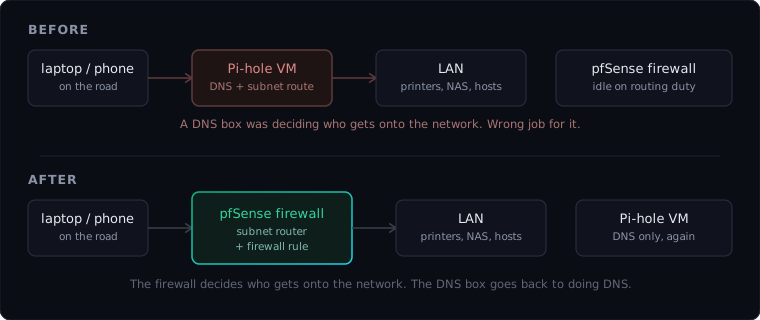
Why this matters, in plain terms
If you’re not deep in networking: think of the subnet router as the receptionist who decides who gets buzzed into the building. You generally want your receptionist to be the front desk. not the photocopier that happens to sit near the door. A DNS server doing access control is the photocopier deciding who gets in. It usually works, right up until it doesn’t, and then nobody’s sure why the building’s access logs live on a copier.
Moving this to the firewall means:
- One system of record for “who can reach what.” Access decisions and the device that enforces them now live in the same place.
- No surprise outage risk. If the DNS box reboots, gets reimaged, or is retired, remote network access doesn’t quietly break with it.
- Tighter, auditable access. While making the move, I also scoped down exactly which devices and accounts can reach which services. not just “anyone on the VPN can see everything.”
None of this required new hardware or new cost. It’s a configuration change on equipment already in place.
Getting Tailscale onto pfSense in the first place
If you’re starting from scratch rather than just moving an existing setup, this part comes first. Netgate ships an official Tailscale plugin for pfSense, installed like any other package:
- System > Package Manager > Available Packages, search
tailscale, click Install. - A new menu shows up afterward: VPN > Tailscale.
- On the Authentication tab, generate an auth key from the Tailscale admin console (Settings > Keys) and paste it into Pre-authentication Key, then Save. A non-reusable, non-ephemeral key is the right choice for a firewall. it’s a permanent member of the network, not a throwaway device.
- Once it connects, go to the Tailscale admin console and disable key expiry for this specific device. Without that, the firewall would eventually need to “log back in” the way a person would. except a firewall can’t click a login link, so it would just silently drop off the network.
That’s the whole install. Everything from here is configuring what the firewall is allowed to do once it’s a member.
Telling the firewall to advertise the route
On pfSense, this lives under VPN > Tailscale > Settings:
- Find Advertised Routes.
- Enter your LAN’s CIDR (e.g.
10.10.10.0/24) in the subnet field, and a short label in the description field next to it. - Click Add. this should create a saved row with a Delete button next to it. If you only see it sitting in the input box with no row underneath, it hasn’t actually been added yet.
- Click Save.
If you already have something else on your network advertising the same range (a different VM, a different router), you don’t have to take it down first. Tailscale supports more than one device advertising the same network range at once. it’s a built-in safety net, not a conflict. That’s what made this a zero-downtime change for me:
- Bring the firewall’s route online alongside the existing one.
- Confirm the firewall actually carries traffic correctly (see the approval and firewall-rule steps below. both are required before traffic flows).
- Only then retire the old route.
At no point was there a window where remote access could disappear mid-change. there were always at least two working paths until the new one was proven.
The bug: the dashboard said yes, the system said no
pfSense has an official Tailscale plugin with a normal-looking settings page. you type in your network range, click Save, and get a friendly confirmation message. Every visual signal said it worked.
It didn’t. The new route never showed up waiting for approval where it should have. The dashboard’s “saved” message was lying. or more precisely, the dashboard was telling the truth about its own form, but that form wasn’t actually reaching the underlying service that does the real work.
The only way to find that out was to bypass the dashboard and ask the underlying service directly, via its command line:
tailscale debug prefs"AdvertiseRoutes": null,Null. Nothing there, despite the dashboard’s reassurance. This is a useful, generally applicable lesson for anyone running infrastructure, technical or not: a “Saved successfully” message confirms the form submitted. it doesn’t confirm the underlying system actually changed. When something matters, verify the actual state, not the confirmation toast.
The fix was to set it directly, skipping the broken middle layer:
tailscale set --advertise-routes=10.10.10.0/24
tailscale debug prefs | grep -A2 AdvertiseRoutes"AdvertiseRoutes": [
"10.10.10.0/24"
],That confirmed it.
Two more gates, both required
Getting the network range registered isn’t the same as traffic actually being allowed to flow. There are two more separate checks, each with its own off switch.
Gate 1: Approval, in the Tailscale admin console:
- Go to the Tailscale admin console > Machines.
- Find your pfSense device, click the
···menu next to it, choose Edit route settings. - Check the box next to your advertised CIDR and Save.
Even a correctly advertised route sits inactive until someone with admin rights on the network approves it here. This is intentional. it stops any device from silently announcing “send LAN traffic through me” without a human signing off.
Gate 2: A matching firewall rule, on pfSense itself:
- Go to Firewall > Rules > Tailscale (a tab that appears automatically once the package is installed).
- Add a new rule: Action
Pass, ProtocolAny. - Source: change from
AnytoNetwork, and enter100.64.0.0/10. this is Tailscale’s own reserved address range, so the rule only matches tailnet traffic, not arbitrary traffic. - Destination:
LAN subnets(not “LAN address”. that option only covers the firewall’s own IP, not the whole network). - Save, then Apply Changes on the rules list page.
A route can be advertised and approved and still get silently blocked at this last gate if nobody added the matching firewall rule. Two systems, both have to agree before anything actually flows.
For anyone in IT or help desk who’s ever debugged “the VPN is connected but I still can’t reach the file server”. this is usually that. Connectivity and permission are two different layers, and both have to say yes.
Cleaning up who can reach what
While making this change, I also tightened the access list instead of leaving it broad. The existing pattern was already “give each thing only what it needs”. the DNS service can only be reached on the DNS port, the monitoring dashboard only on its own ports. So the new rule for the two non-admin accounts that manage the virtualization host followed the same shape: access to that one host, on the two ports they actually use (the web console and remote terminal), and nothing else on the network. My own account keeps full access, since someone has to be able to reach everything when something breaks. but that’s the only account with that level of access.
The principle, in one line: a system that can reach everything is a risk waiting to be discovered; a system that can reach exactly what it needs is just infrastructure doing its job.
Recap
If you’re following along end to end, here’s the full sequence in order:
- Install the Tailscale package on pfSense (System > Package Manager), authenticate it with a non-reusable, non-ephemeral key, and disable key expiry for the device.
- Advertise your LAN range under VPN > Tailscale > Settings.
- Approve that route in the Tailscale admin console under Machines.
- Add the matching pass rule under Firewall > Rules > Tailscale.
- If something else was previously advertising the route, retire it only after confirming the firewall carries traffic correctly. never the other way around.
- Scope any non-admin access tightly: specific hosts, specific ports, nothing else.
That’s the whole setup, and it holds up whether you’re running one firewall at home or rolling this out somewhere with a help desk fielding the “VPN’s connected but I can’t reach anything” tickets.
Related
- When Tailscale breaks your LAN host’s gateway: the accept-routes trap when you retire the old subnet router
- Netgate DNS Cutover Toolkit: preflight that caught the outage before a DNS migration